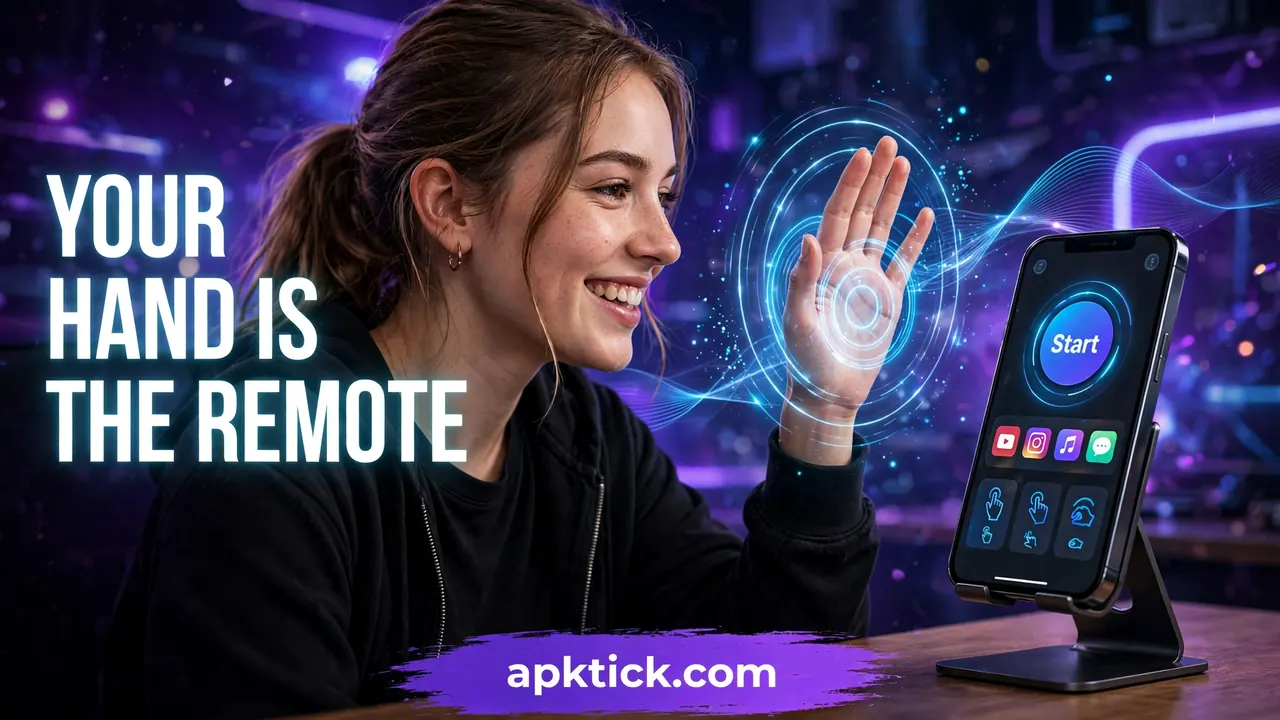
Last Sunday I was in the kitchen following a recipe video on my phone, and my hands were completely covered in flour. The video kept moving ahead, I needed to pause it, and I stood there waving a floury hand at the screen like an idiot because touching the phone meant a dirty screen and a sticky mess.
That silly moment is exactly the problem this app tries to solve. AirTouch: Gesture Control lets you use your Android phone without touching it at all. Your front camera watches your hand, and your hand movements turn into taps, scrolls and commands on the screen.
I always test these futuristic sounding features properly before I trust them. When I checked the paid Instagram verification badge recently, I wrote down the real price and the official download steps only after going through the whole process myself, because half of what you read online is just hype. AirTouch deserved the same honest treatment, so I installed it, set it up, and used it in the same situations where my hands are usually busy or dirty.
What AirTouch Actually Does
The idea is simple. The app uses your front camera and hand tracking to follow your hand in the air in front of the phone. When you point your index finger, a cursor appears on the screen and moves with your finger. When you pinch your fingers together, the app treats it like a tap on the screen.
On top of that basic pointer, you can assign actions to different hand poses. Hold up a peace sign, show an open palm, or hold three fingers up, and the phone can scroll, go back, open your recent apps, take a screenshot, or even launch another app. There are more than 25 actions you can map to gestures.
The part I liked most is that all the processing happens on your phone itself. The app clearly says no hand data is sent to outside servers, which matters because a camera based app makes a lot of people nervous.
The Pointer and the Pinch Click
The first time the cursor followed my finger in the air, it genuinely felt like a magic trick. You point, the cursor moves. You pinch, it clicks. You swipe your hand, the page scrolls.
It is not perfect on the first try. My first five minutes were honestly funny. The cursor jumped around, I clicked two wrong icons, and I opened my gallery when I wanted settings. The trick is the calibration settings. You can adjust the pointer speed, the click sensitivity, and the horizontal and vertical calibration until the cursor lands where your finger actually points.
My honest advice is to slow the pointer speed down at the start. Everyone keeps it fast because it feels exciting, and then they complain the app is broken. Slow it down, spend two minutes on calibration, and the whole experience becomes twice as good.
Once it clicks, literally, you can scroll articles, pause videos and flip through photos without your fingers ever touching the glass.
Poses That Feel Like Magic Tricks
The pointer is only half of this app. The poses are where it gets fun.
You can set quick poses, like Peace, Palm or Three Fingers, and combine a pose with a small movement to trigger an action. So a palm swipe can scroll down, and a peace sign movement can go back. Then there are static poses, like Rock On, Finger Gun or Pinky Up. You just hold the pose for a moment, no movement needed, and the action fires.
I set a static pose for screenshots and one for play and pause, and those two alone covered most of my daily use. There is something deeply satisfying about pausing a video by holding up two fingers while your hands are wet or dirty.
You can also change what any pose does whenever you want. If a gesture feels awkward, swap it. That flexibility is what keeps the app usable after the first day of fun is over.
Different Gestures for Different Apps
Here is a feature I did not expect. AirTouch lets you set different gesture behaviour for different apps.
So in YouTube, your favourite pose can be play and pause and your swipe can be volume. In your browser, the same poses can become scroll and back. In a music app, they can skip tracks. The app uses usage access permission to know which app is open, and it applies that app’s gesture profile automatically.
This sounds like a small detail, but it is the difference between a toy and a tool. Setting up two or three app profiles took me a few minutes, and after that the gestures started feeling natural instead of confusing.
How I Set It Up on My Phone
Setup takes a few minutes because the app needs some serious permissions to do its job. Here is the exact order that worked for me.
Step 1: Install AirTouch from the Play Store using the download button at the end of this post, and open it.
Step 2: Allow the camera permission. This is how the app sees your hand, so nothing works without it.
Step 3: Turn on the Accessibility Service for AirTouch when the app asks. This is what lets the app perform taps, scrolls and system actions for you.
Step 4: Allow the Display Over Other Apps permission. The floating cursor needs this to appear on top of your other apps.
Step 5: Allow usage access if you want the app specific gesture profiles to work.
Step 6: Do the calibration. Set your pointer speed a little slow, pick a pointer colour you can see easily, and test a few pinches.
Step 7: Choose a performance mode. High Performance is the smoothest, Balanced is fine for most people, and Power Saver is gentler on your battery.
One honest note about permissions. Camera plus accessibility sounds scary, and you should never give these to an app you do not trust. What made me comfortable here is that the app states clearly that all hand tracking is processed on the device and nothing is uploaded. If it ever makes you uneasy, remove the permissions from your phone settings and the app simply stops working.
The Honest Problems You Should Know First
Now the part most reviews skip. AirTouch has a rating of about 2.6 stars on the Play Store from a few hundred ratings, and after using it, I understand why people are divided.
First, light matters a lot. In a bright room the tracking was smooth. In my dim bedroom in the evening, the app missed my hand again and again. The listing itself admits it works best in well lit places, and that is completely true.
Second, there is a learning curve. Your hand gets tired holding it up, your pinch timing needs practice, and the first day feels slower than just tapping the screen. People who expected instant movie style magic probably gave up and left a low rating.
Third, because the camera stays active while you use it, battery drains faster, especially on High Performance mode. This is not an all day setting for most phones.
None of these make the app bad. They make it a specialist tool. Used in the right moments, it is brilliant. Used as a full replacement for your touchscreen all day, it will annoy you.
Who Should Try It and Who Should Skip It
Try AirTouch if your hands are often busy, wet, dirty or gloved while your phone is playing something. Cooking, workouts, workshop work, and presentations are perfect cases. It is also great for anyone who has trouble touching a screen comfortably, because big simple hand movements can replace small precise taps.
Skip it if you mostly use your phone in dark rooms, if your front camera is weak, or if you want something that works perfectly with zero practice. Some people just want one simple trick that works every single time, like the photo lock app I covered earlier, where you download a lock that opens your apps with secret taps on your own picture. That kind of app asks nothing from you after setup, and there is no shame in preferring simple.
If you do try AirTouch, give it one proper evening of practice in a bright room before you judge it. Judging it in the first five minutes is the most common mistake I have seen in the reviews, and I nearly made it myself.
Would I Keep It on My Phone?
Yes, but in a specific way. I am not replacing my touchscreen, and nobody should. I keep AirTouch ready for the kitchen, for workout videos, and for those lazy moments when the phone is on a stand a little too far from my hand.
It turns your front camera into a remote control for your phone, and once you accept its limits, the trick stops feeling like a trick. It just becomes a genuinely useful way to use your phone when touching it is the one thing you cannot do.


2 Comments on “This App Turns Your Front Camera Into a Remote Control for Your Phone”