Last month I handed my phone to a friend so she could look at photos from a family trip. Then I noticed my messaging app was still open behind the photos, showing a chat about a surprise party. I grabbed the phone back a little too fast and laughed it off.
The real problem was that I had avoided PIN locks for my apps for months. Typing four digits every time I opened a chat felt like a chore. So I left everything unlocked, which is not a great plan when other people borrow your Android phone.
A few weeks ago I started looking for something less annoying than a PIN. That search led me to a picture app lock idea, where you tap three spots on a photo instead of typing numbers. So I decided to download Picture AppLock: Lock the Apps by CFY Apps, a free app from the Google Play Store.
I have used it for a few weeks on my own Android phone, and my feelings are mixed in a good way. Some parts made my routine easier, while others taught me lessons the hard way. Here is what worked, what went wrong, and what I would check before trusting any app lock.
How the picture lock idea works
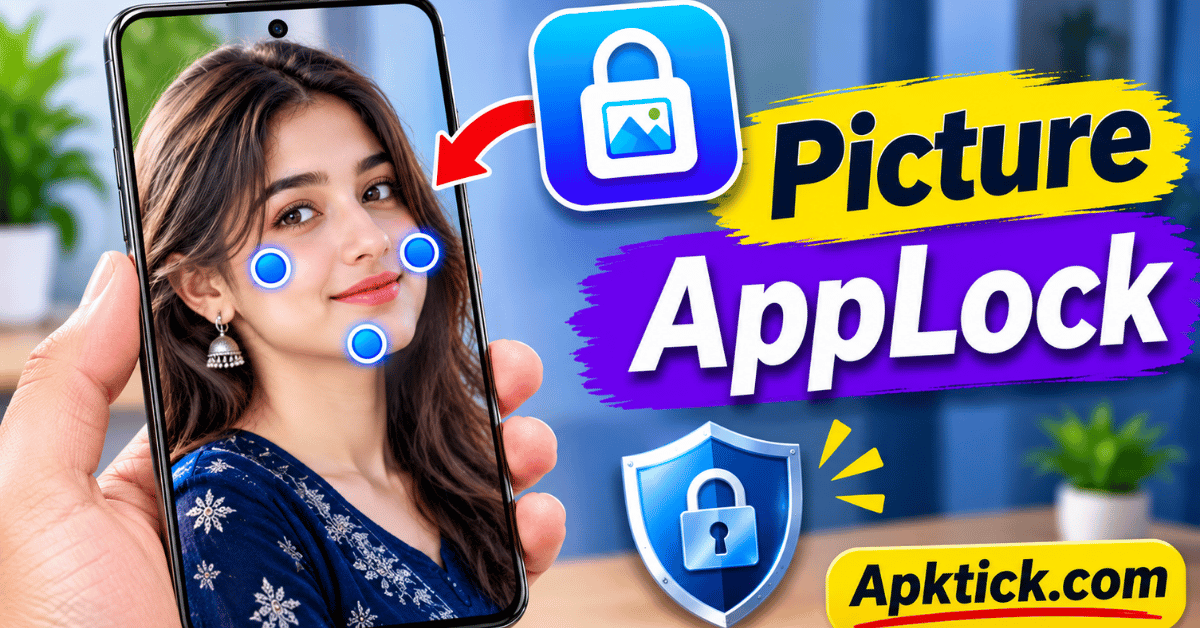
The idea is simple once you try it. You pick any photo from your gallery, then tap three spots on it, like an eye, a branch, or a wheel on a bicycle. Those three hidden spots become your code, and the app remembers them. That matters to me because it feels lighter than typing a PIN again and again.
When you open a locked app, your chosen photo appears and you tap the same three spots. It feels like a secret handshake, but with a picture instead of a person. My tip is to repeat the three spots in your head a few times on day one. A common mistake is picking spots in a hurry and then forgetting which ones you chose.
Choosing a good photo and good spots
I picked a picture of a crowded street market, full of small details like signs, bikes, and lanterns. Plain skies and blank walls offer very few places to tap, so I skip them. I also avoid private or sensitive pictures, since that image appears every time someone opens a locked app.
For the three spots, I chose small things that are not the most obvious feature, like the corner of a sign instead of the biggest lantern. Even so, a person who watches your taps closely over time may still learn the spots. So I try to be a little careful in public. My mistake early on was picking three spots that were very close together, which made them easy to confuse.
Locking the apps you care about
Choosing which apps to lock takes only a single tap per app. I locked my messages, one social media app, my gallery, and my email. Those are the places where a quick look from someone else could cause the most awkward moments. Setting it up took me only a few minutes, which I appreciated.
My mistake was locking almost everything in the first two days. Every time I opened a calculator or a weather app, I had to tap my three spots, and it became tiring fast. Now I lock only the apps that hold personal things, and the phone feels pleasant to use again. My advice is to start with three or four apps and add more only if you really miss them.
Match accuracy
Match accuracy controls how close your tap must be to a chosen spot. You can move the touch radius from a normal setting to a more precise one. A tighter setting makes lucky random taps less likely to work. The downside is that it can make unlocking harder for you, at least at first.
On day one I set it to the most precise option, hoping for the best result. Then I failed to open my own messages four times while standing in a grocery line. I moved it back to normal and tried the tighter setting again only after my fingers learned the spots. If you are new, start with the normal setting and make it more precise only when unlocking feels easy.
Auto lock timer
The auto lock timer decides when an app locks again after you leave it. You can choose to lock right away, or wait a short time such as 30 seconds or 2 minutes. Locking right away is the stricter choice, since nobody gets a free window. A short wait is easier when you jump between apps often.
I started with a wait of two minutes because I was tired of tapping while replying to messages. Then I realized a friend could pick up my phone during that window and open my chat without any lock. That was my small lesson about trade offs, since convenience and safety pull in opposite directions. Now I use a much shorter wait, and I hardly mind the extra taps.
Recovery and uninstall protection
If you forget your secret spots, your phone’s own fingerprint or face unlock can be used to reset the code. This matters a lot, because a picture code is easy to mix up after a break. There is also a protection option meant to make deleting the app harder for others. I like that idea, although I would not treat it as a guarantee.
My advice is to set up recovery right away, before you lock anything important. Then test it, so you know what the reset screen looks like and that your fingerprint or face works there. I skipped the test at first and felt nervous the day I mixed up my spots. Five minutes of checking early saves a lot of stress later.
Problems I ran into and how I solved them
A few times on my phone the lock did not appear, and an app simply opened without it. User reports suggest this happens when the phone closes the lock app in the background. The developer’s reply on the Play Store says to turn off battery optimization for the app, using the warning shown on its main page. I followed that step, and the lock has been more reliable for me since.
A recent update note says an issue where the app lock stopped working after some time was fixed. One reviewer also worried that closing apps from the recent apps screen could stop the security feature. Results can differ by phone brand and Android version, so please treat these as user reports and not facts about every phone.
Honest limitations
Now for the honest part. The app contains ads and has in app purchases, so the experience is not always smooth. On the Play Store it shows a rating of about 4.2 from roughly 7 thousand reviews, with more than a million installs. Those numbers can change, so please check the current page yourself before you download it.
My funniest moment happened at a family dinner, when my cousin asked to see a photo on my phone. I tapped the wrong spot three times in a row, and the whole table started laughing. I had forgotten which lantern I picked in my market photo, and I kept tapping the wrong one. She joked that I had locked myself out of my own photos.
Privacy and data safety
The developer says the photos, tap spots, and app usage history are processed and stored locally on the device. That sounds reassuring, but it is only one side of the story. I treat it as the developer’s own description, not as proof, and I would not call the app private or promise protection against every threat.
The Play Store data safety section lists other details. It says the app may share device or other IDs with third parties, and may collect data types such as financial info, app activity, and two other types. It also says the data is encrypted in transit and that the data cannot be deleted. Please read that section and the privacy policy yourself before installing, and decide what you are comfortable with.
After a few weeks, I still use a picture app lock on my Android phone for messages, email, and my gallery. It is more fun than a PIN, and the three taps became a habit quickly. I learned to test recovery early and treat it as one small layer. If you try it, go slowly with the settings and keep your three spots to yourself.

4 Comments on “How a Picture App Lock Works With Just Three Secret Taps”