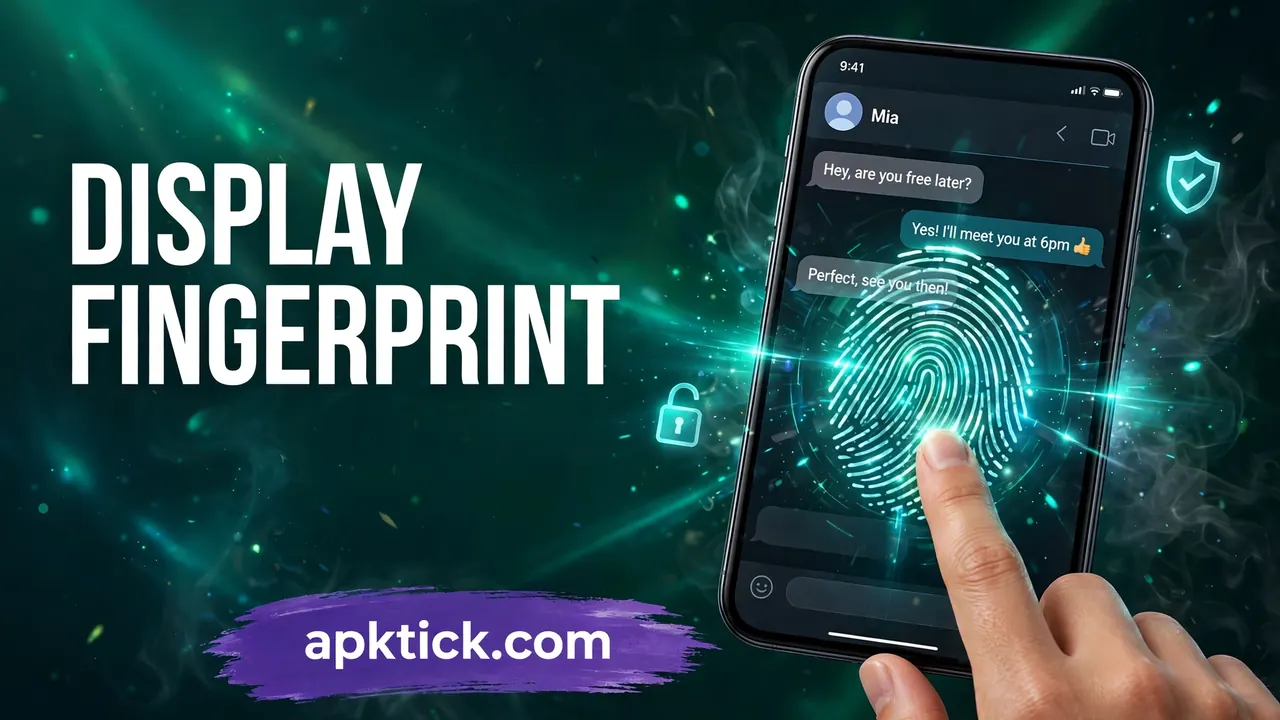
My phone was lying on the table during a family dinner when my little nephew picked it up. He only wanted to play a game, he said. Two taps later he was one swipe away from my WhatsApp chats, and that is when I finally understood something. My problem is not a clever thief. My problem is friendly hands.
Most of us lock our phones, but the moment the phone is unlocked for a call, a photo or a game, everything inside is wide open. Chats, gallery, banking apps, all of it. So this week I tested an app that puts a second door in front of the apps themselves, a door that opens only with my fingerprint.
Lock apps are not new on this site. I once wrote about a lock that hides everything behind secret taps on a photo, and readers still reach that guide through its official download page. This time the idea is simpler and, honestly, smarter. Use the finger you already unlock your phone with, and lock WhatsApp behind it too.
What the Fingerprint Lock Screen App Actually Is
The app is called Fingerprint Lock Screen, made by DOSA Apps. It is free on the Play Store, rated about 4.1 stars from roughly 20,000 ratings, and it has crossed 5 million downloads, so it is not some unknown experiment.
Its job is simple to explain. You choose the apps you want to protect, and every time someone opens one of them, the app asks for your fingerprint first. No matching finger, no entry. If fingerprint is not available or fails, a backup PIN, pattern or password steps in.
The app uses your phone’s own fingerprint system, the same one you already trust for unlocking the phone. It does not create a fake fingerprint scanner picture like those joke apps from years ago. When the lock screen appears, touching the sensor with a registered finger opens the app, and any other finger is rejected.
Apart from fingerprint, it also offers PIN, pattern and even a voice lock, plus a private vault for photos and videos. But the fingerprint is the star, so that is what I tested properly.
How I Set It Up on My Phone
The whole setup took me less than five minutes.
Step 1: I installed the app from the Play Store. The download button at the end of this post goes to the same official page.
Step 2: The app asked for two permissions, and I want to explain them honestly because every real app lock needs them. The first is usage access, so the app knows which app just opened. The second is permission to appear on top of other apps, so it can show the lock screen at the right moment. Without these two, no app lock on Android can work. Still, only grant them to apps you trust, and only from the Play Store.
Step 3: I created a master PIN as a backup. Write yours down somewhere safe at home. If your fingerprint sensor ever fails, this PIN is your only way in.
Step 4: I turned on fingerprint unlock and confirmed it with the finger I already use on my phone. Nothing new to register.
Step 5: I picked my apps. WhatsApp first, then Gallery, Instagram and my banking app. There is also a one tap option that locks whole categories like social apps together, which saves time.
Step 6: I locked the phone, opened WhatsApp, and the lock screen appeared instantly. One touch, and I was in. That small delay of half a second is the whole price of this privacy.
The Test: I Gave My Phone to My Cousin
Setup screens tell you nothing, so I did a real test. I handed my unlocked phone to my cousin and casually said, “Check the cricket score.”
He opened Chrome, then, exactly as I hoped for the test, drifted to WhatsApp. The fingerprint screen came up. He laughed, pressed his own thumb on it, and got rejected. Then he tried the PIN pad and guessed my birth year, wrong again.
Here is the part that made me smile. When I opened the app later, it had quietly taken an intruder selfie of him at the exact moment of the wrong attempts, with the time written under it. The app calls this feature Intruder Selfie, and it is the best evidence you can show a snooping relative while staying polite. “The phone itself took your photo, not me.”
WhatsApp stayed sealed the whole time. My chats were exactly as private as they should have been on a phone lying around in a family home.
Extra Features That Are Genuinely Useful
Beyond the main lock, four smaller features earned my respect during the week.
The disguise option lets you change the app’s icon, so the locker itself does not advertise its presence on your home screen. The random keyboard shuffles the PIN pad numbers, so nobody can guess your code by watching your fingers or reading smudge marks. The media vault moves private photos and videos behind the same fingerprint, away from the open gallery. And the voice lock, where you unlock with a spoken phrase, is more fun than practical, but it works as a party trick that still keeps people out.
None of these are life changing alone. Together they show the developers thought about how snooping actually happens in real homes, which is casually, not by hackers in hoodies.
The Honest Limits You Should Know
Now the part the glowing reviews skip. This app adds a strong second door, but it is not a bank vault, and you should understand exactly where its walls end.
First, it does not replace your phone’s own lock screen. If your phone lock is weak, fix that first. This app protects selected apps on an already unlocked phone, nothing more.
Second, a determined person can try to uninstall the app itself to remove the locks. The smart counter move is simple. Lock the Settings app and the Play Store inside this app too, so the uninstall road also passes your fingerprint.
Third, think about trust. An app lock can see which apps you open and when. That is how it works. So only ever install such apps from the Play Store, from known listings like this one with millions of downloads, and never from random APK websites. It is the same rule I followed during my front camera gesture test, where I only trusted the official download from the Play Store and said no to three copycat versions. With privacy apps, the source matters more than the features.
Fourth, the 4.1 rating exists for a reason. On some phones, aggressive battery savers can pause the lock service until you reopen the app once. If that happens on your phone, allow the app to run in the background in your battery settings. One minute of setup saves the whole idea.
Would I Keep WhatsApp Locked Like This?
Yes, and I already have. A week later, the fingerprint tap feels as natural as unlocking the phone itself. I do not think about it anymore, except when I hand my phone to someone for a photo and feel zero tension in my chest. That small peace is worth far more than the five minutes it took to set up.
If your phone passes through many hands at home, at the shop, or at the office, this is one of the most useful free apps you can install. Just set a backup PIN you will not forget, lock Settings along with your chats, and download it only from the official Play Store page.
Your chats are your business. Now they can finally stay that way.

One Comment on “I Locked My WhatsApp With My Fingerprint Using This App: Here Is How It Went”