Think about how many times a day you pull your notification bar down. Messages, calls, reminders, the weather, a quick check of the battery. For me it must be fifty times a day at least. And every single time, the same dull grey panel opened in front of me. I never complained about it, because it was just there, like the ceiling of a room you stop noticing.
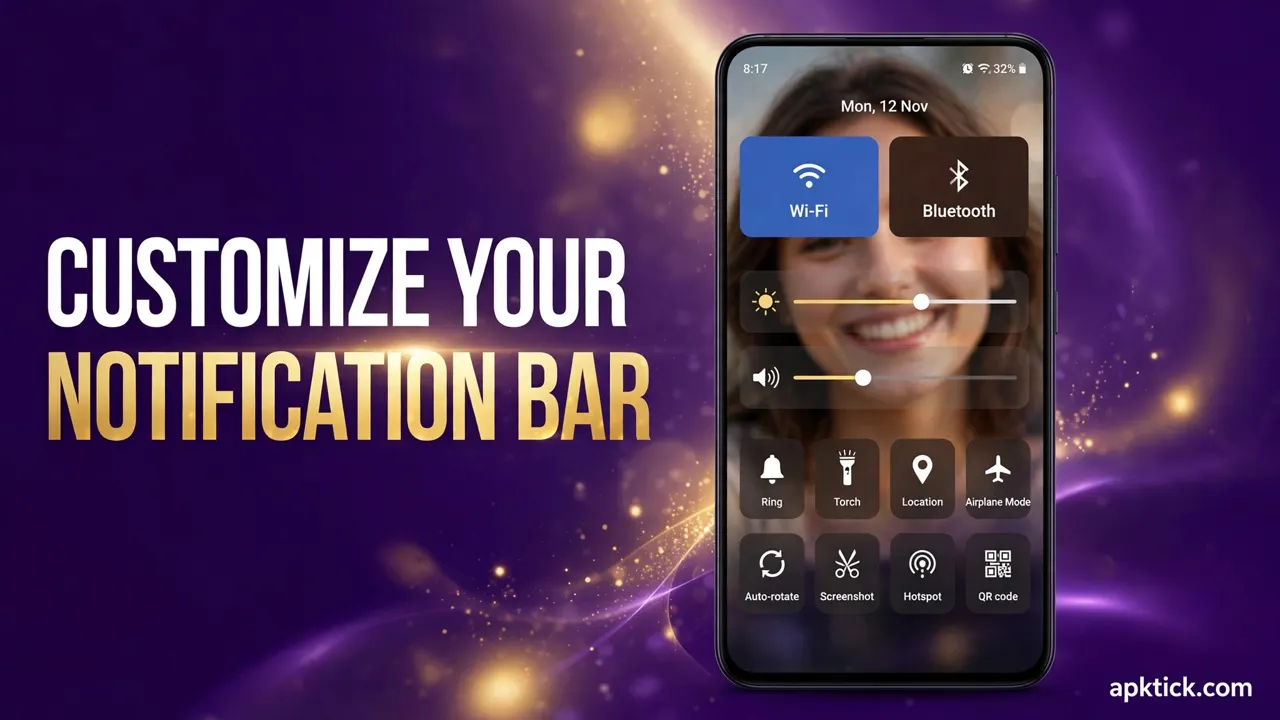
Then one evening a friend showed me his phone. He pulled his notification bar down and a photo of his daughter smiled back at him from behind the notifications. Not a wallpaper, not the lock screen. The actual notification panel had his photo sitting behind it, and all his messages were floating on top. I stared at it for a few seconds longer than I should have. I had never thought of that little grey panel as something that could look personal.
I am always testing these small customization apps on this phone. Last week I changed my whole keyboard into a golden gun theme, and you can download that keyboard guide if you missed it. This week it was the turn of the notification bar, and the app that does it is called Notification Bar Customization. It is free, and I spent a full day with it before writing this.
What This App Actually Does
The main idea is simple. The app replaces the plain background of your notification panel with a photo or a wallpaper of your choice. You can pick a picture from your gallery, your family, your favourite place, anything you like, and it sits behind your notifications. The notifications themselves still work the same way. You can still read them, tap them and clear them. Only the background changes, from dull grey to something that is yours.
The second thing it does is the status bar, the thin strip at the very top of your screen with the time, the battery and the signal. Inside the app you can change its colour, show or hide the battery percentage, change the carrier name to your own words, change the time format, and even change the text colour, size and font. It is a lot of small controls in one place, and together they change how the top of your phone looks.
The third part is a set of quick toggles inside the notification panel itself. WiFi, mobile data, Bluetooth, silent mode, vibration, rotation, flash, night mode, location, hotspot, do not disturb, airplane mode, and even a screenshot button and a calendar. Most phones already have some of these, but the app puts them together in one custom panel.
How I Set My Photo as the Background
Setting it up took me about five minutes, and most of that time went into choosing the photo. Here is what I did.
- I installed Notification Bar Customization from the Play Store using the download button at the end of this article, so I landed on the correct app.
- I opened the app and went to the notification bar section, where it shows the background option.
- I picked a photo from my gallery, the one I wanted to see every time I pulled the bar down.
- The app asked for the permission to draw over other apps. This is normal for this kind of app, because it needs to show its panel on top of your screen. I allowed it.
- I pulled the notification bar down, and there was my photo, sitting quietly behind my notifications.
The first time I saw it, I honestly smiled. It was such a small change, but it made the phone feel like it belonged to me in a way it never had before. The rest of the day I kept pulling the bar down just to look at it, and that is probably the best test any customization can pass.
The Status Bar Part I Did Not Expect
I installed this app for the photo background, but the status bar changes are what stayed with me. The carrier name change is a small thing that makes people laugh. You can replace your network name with your own name or any word you like, and it sits right there at the top of your screen all day.
The colour change matters too. I set the status bar to a deep blue that matched my photo, and suddenly the whole top of the phone looked planned instead of random. The battery percentage toggle is useful in a practical way as well. Some phones hide the exact number, and this app lets you bring it back with one switch.
These are small settings, and I will not pretend they change your life. But they are the kind of details you notice fifty times a day, and that is exactly why they matter more than a big feature you open once a week.
The Honest Part, That 2.2 Rating
Now I have to be straight with you, because I promised honest numbers and here the number is not good. On the Play Store this app holds a rating of only 2.2 stars from more than 4000 ratings. That is a low rating, and a low rating from that many people means something. It does not mean the app is fake, and it does not mean nothing works. It means many users were not happy with their experience, and you should walk in with your eyes open.
From my own day of testing, I can tell you what the rating probably reflects. An app like this sits on top of your system, so it behaves differently on different phones. On some phones it works smoothly. On others it can feel heavy or clash with the phone maker own notification design. That is the reality of overlay apps, and it is why one person loves them and another uninstalls them within an hour.
So here is my honest advice. Try it for a day. If it feels smooth on your phone, keep it, because the photo background really does look lovely. If your phone starts feeling slow or the panel behaves strangely, remove it without feeling bad. The app is free, so the only thing you spend is ten minutes of your time.
Small Problems to Watch For
If you try it and something does not work, it is usually one of these small things.
- The panel never appears. The draw over other apps permission is the key. If you skipped it during setup, the app cannot show its panel at all. Go to the app info, allow the permission, and try again.
- It works and then stops. Some phones are aggressive about saving battery and close background apps on their own. If the panel disappears after a few hours, check your phone battery settings and allow this app to run in the background.
- The photo looks too bright or too dark. A very bright photo can make notification text hard to read. Pick a photo with soft light and a calm background, and your messages will stay easy to read.
- The toggles feel crowded. You do not need all of them. Turn off the ones you never use, and the panel becomes cleaner and faster to scan.
Before You Decide, Is It Worth Trying
Let me answer this the way I would answer a friend. If you love making your phone feel personal, yes, it is worth ten minutes of your time. The photo background is genuinely lovely, the status bar controls are fun, and the price is nothing. If your phone is old and already struggles, be a little more careful, because any overlay app adds a small load, and you will feel it sooner on a tired phone.
The important thing is to expect the app for what it is. It is a small free customization tool, not a polished system feature. Take the nice parts, ignore the rough edges, and keep it only if your own phone likes it. That is the same rule I use for every app on this site.
I have tested many apps that change small parts of the phone in surprising ways. One of my favourites turned the front camera into a remote control, and you can download that guide and read how it went. Small apps like these are the most fun part of owning an Android phone.
A Small Change I Notice Every Day
We spend so much money and time on the big things, a new phone, a new case, a new wallpaper. But the notification bar is the one screen we open fifty times a day, and nobody thinks of making it their own. One photo changed that for me, and every swipe down since then has felt a little warmer.
Use the button below to open the official Play Store page, pick a photo that makes you smile, and give your notification bar a little personality of its own.