Last month I handed my phone to a friend so he could watch a video. Halfway through, he swiped out of the player and began scrolling my gallery. He meant no harm, but my face went warm.
That night I realized my PIN matched my email and shopping apps. One code guarded everything and never changed. I wanted a better habit.
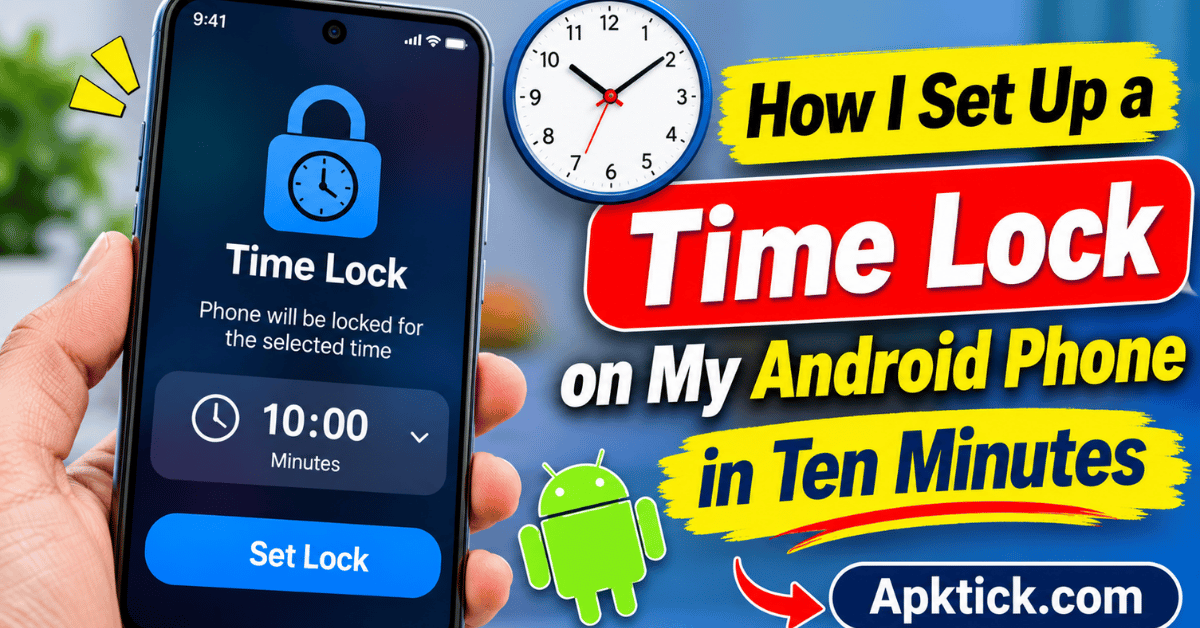
A reader suggested a time lock, where part of the passcode follows the clock. I found a free app called Screen Lock Time Password by Adria Devs and chose to download it. Setup took about ten minutes.
This guide follows my steps in order, mistakes included. It suits anyone with an Android phone who wants a better lock screen habit. Read each part before tapping.
What to know before you start
This is a lock screen app where the current time becomes part of your passcode, so the code keeps changing. Say it is 4:35 in the morning, and in 24 hour format that reads 0435. A minute later it becomes 0436, so the number keeps moving. Think of it as a door code that moves with the clock.
A pure time code has a weakness, because anyone who learns the idea could guess it. That is why I prefer the options that mix in my own secret PIN. Also keep your normal phone lock turned on until you have tested everything. I skipped that advice once and nearly locked myself out of my own phone.
Step 1: Installing the app
Open the Google Play Store and search for Screen Lock Time Password. Many apps share similar names, so look for the developer name Adria Devs under the title. Mine showed the app as free, which was exactly what I wanted to see before spending time on it. That small developer check saves you from tapping a lookalike listing by accident.
Before you press install, scroll through the listing. Read the description, look at the screenshots, and skim the most recent reviews. I also glanced at the data safety section, because I like knowing what an app says about itself. The install finished in under a minute on my home wifi, and the icon appeared right away.
Step 2: Giving the right permissions
When the app opens, it asks for permissions one by one. Read each message slowly instead of tapping allow on autopilot. Allow only what the app needs to work as a lock screen, and think twice about anything that seems unrelated. I stopped at one prompt, thought about what it did, and only then continued.
If the lock does not show up later, check battery optimization and auto start settings. Phones love to put apps to sleep, and a sleeping lock screen app cannot do its job. Menus differ by phone brand, so search your settings for the words battery or startup. On mine, the option sat under a different name than I expected.
Step 3: Choosing a lock mode
The app offers four modes: Pin Plus Minute Passcode, Pin Plus Current Time Passcode, Pin Plus Day Passcode, and Pin Plus Hour Passcode. Each one mixes your own PIN with a part of the clock. In simple words, the more often the changing part changes, the harder a copied code is to reuse.
The catch is that you need more attention as the changing part speeds up. A code that changes every minute needs you to watch the clock, and a rushed tap can fail. My tip is to start with the Hour or Day mode first, then move up once you feel comfortable. I jumped straight to Minute on day one and regretted it by lunch.
Step 4: Picking 12-hour or 24-hour format
The app builds the password from the time format you choose. In 24 hour format, 3:05 in the afternoon becomes 1505. In 12 hour format, that same moment becomes 0305, which looks like a very different number. Same clock, two different codes, and the lock will not forgive a mix up.
Mixing them up causes wrong attempts, and I know that from my own experience. I picked 12 hour format in the app but kept thinking in 24 hour numbers from my phone clock. Three failed tries later, I finally noticed the mismatch. Choose one format and stick with it so your fingers learn the pattern.
Step 5: Setting up password recovery
Do this right away, while you are calm and nothing is wrong. Password recovery is your way back in if you forget a PIN or mistype the changing part too many times. I almost scrolled past this screen because I was eager to see the lock itself. Please do not copy that habit.
Follow the screen and fill in whatever recovery details the app asks for. Choose details you will still remember in six months, not ones that only make sense today. Then write them down somewhere safe, away from your phone. A recovery option you cannot remember is just a locked door with a lost key.
Step 6: Making the lock screen yours
You can pick an image from your gallery as the lock screen wallpaper. This is the fun part, and it makes the lock feel like your own. The look is a little like an iPhone style lock screen, but I will leave it at that. What matters more is how it behaves when you are in a hurry.
My tip is to avoid busy or very bright images, because the number pad sits on top of the picture. My first choice was a sunny beach photo, and the digits nearly vanished into the glare. I switched to a calm, darker picture and could read every key at once. Test your pick in daylight and in a dim room.
Step 7: Testing before you trust it
Now lock and unlock the phone a few times, with your normal lock still active as a backup. Enter the code slowly at first, then at your usual speed. Next, try typing near the end of a minute to see what happens. I watched the clock tick over while my thumb was halfway through the digits.
In Minute mode I typed the code one second too late, and the screen simply said no. I laughed, because I had planned this on purpose and still felt annoyed. Waiting for the next minute and trying again worked fine. Finally, restart the phone once to confirm the lock appears after it boots.
Extras you may try
The app also includes a vault for hiding photos and videos. I moved a few test photos and one short video in first, not anything important. Then I opened my gallery to check that the originals were really gone from it. Do this check yourself, because you should confirm a hiding feature works before trusting it.
There is also a private browser that does not keep local history. Be honest with yourself about what that means. It only clears history on the phone, and it does not hide your activity from websites or your internet provider. I treat it as a tidy way to avoid leftover history, not as an invisibility cloak.
Problems I ran into and how I fixed them
The first problem was missing the minute change. I read the clock, started typing, and the minute flipped before I finished. The fix was simple: check the time, wait for a fresh minute if it is about to change, then type calmly. The second problem was the wrong format, and the cure was to match the app setting to my habit.
The third problem was scarier. After a restart, the lock did not appear on my phone. I almost went looking to download a different app, but the fix was in my settings. Turning off battery optimization for the app and allowing auto start brought the lock screen back, though the exact menus differ by brand.
Honest limitations and what to check first
This app asks for more attention than a regular PIN, and that is the price of a changing code. You may mistype in the first week. Results also vary by phone brand and settings, so my experience may not match yours. I would not call any lock perfect, and this one cannot promise protection from every threat.
On the Play Store, the listing shows around 4.3 stars from about 150 thousand reviews, and third party tracking sites report over 10 million installs. These numbers can change, so check them yourself. Before you install, read the data safety section, the permissions, and the recent reviews on the Play Store page. Then decide what you are comfortable with.
A time lock will not suit everyone. It turned my tired old PIN habit into something I think about. If you try it, go slowly and keep your backup lock until you trust your fingers.